
ARRI Activation
Activate with a product key Paste your serial and press Activate 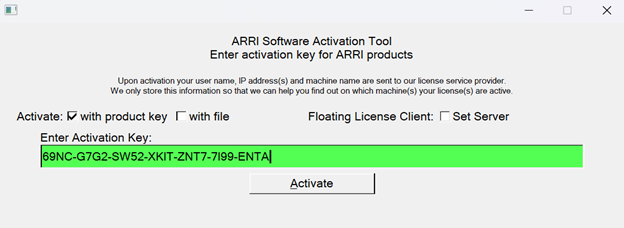 Deactivate Once activated, you can always deactivate with this tool to release license to another machine.
 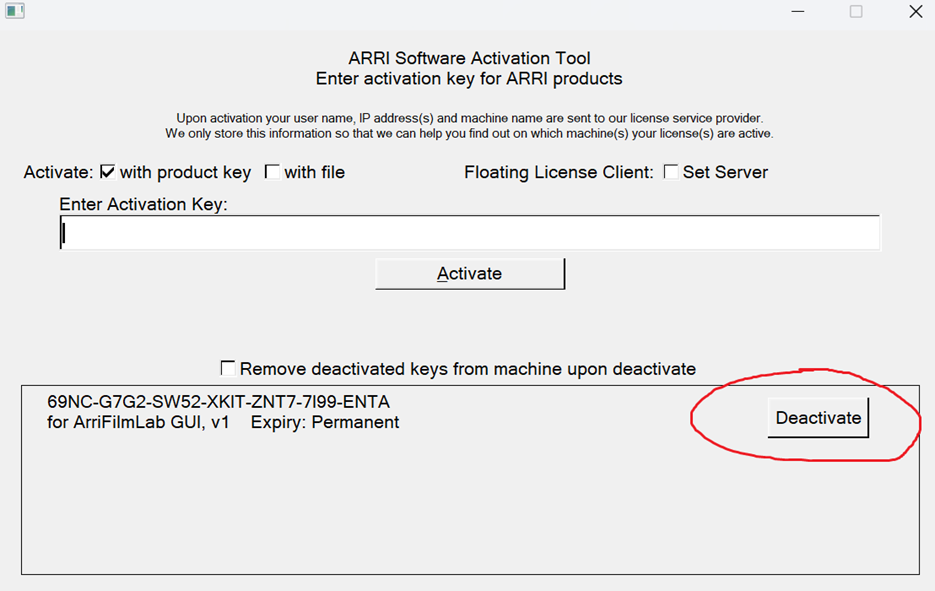 You can also do it remotely via your revisionfx.com account via the status button.
Moving from internet activation to node-lock a machine without internet
First, check Remove deactivated keys and press deactivate. We also suggest doing that if you sell your computer. It’s easier if needed to simply whitelist the domain wyday.com, the company we use to serve licensing but if you are without internet access keep reading. 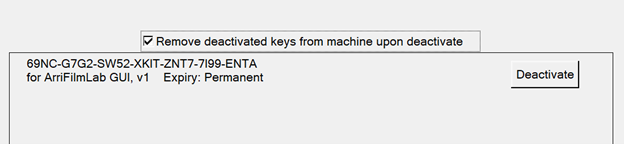
Node-Locking a license to a machine without internet
Switch to [x] with file Paste your Activation key Press Generate XML 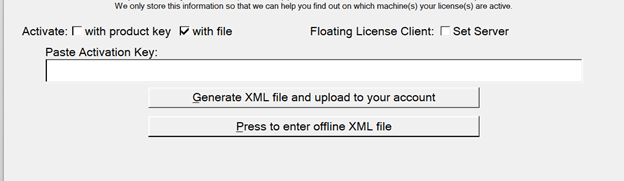 Go to your account at revisionfx.com, and select Licenses
 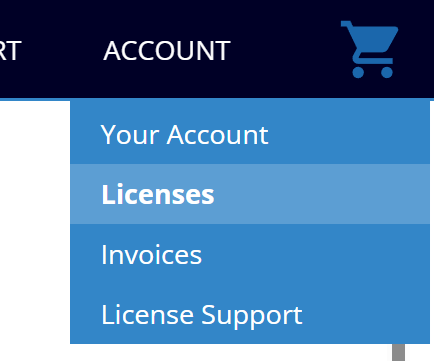 Press the Status button and upload the XML file. This will generate a response XML file. Careful for Microsoft Edge user, Microsoft will ask you to press the Keep button. Now Press to enter the XML file. Close when prompted and you should be good. You might need to restart your application. Command Line Option ArriActivate supports command line the same way as REVisionActivate. See revisionfx.com/faq/revision-activate-command-line/ Basically: ArriActivate -s -k 1234-1234-1234-1234-1234-1234-1234 /* your registration code */ -s for slient
=============================================
ARRI Activation in Baselight TWO workstations
If you are planning to use a floating license setup (recommended for shared environments), please refer to the Floating License documentation instead:
Overview
On a Baselight TWO workstation running Rocky Linux, activation involves two separate machines on the network:
Host: the GUI workstation
node0: the headless render node
The ARRI OFX plugin must be installed and activated on the ‘node0’ system.
Installation
Download the latest ARRI Film Lab installer for Linux:
https://revisionfx.com/products/arrifilmlab/baselight/
Uncompress the .zip package (for example, in your ~/Downloads folder). Open a terminal and connect to the render node via ssh: ssh node0
Navigate to the installer location, and run the installer with sudo:
cd ~/Downloads/ sudo ./arri_openfx_film_lab_plugin-*
During installation:
· Press q to reach the end of the EULA · Press y + Enter to accept and install · You may see the following warning: “Can’t open display:”
This is expected on a headless system and can be ignored.
Activation
Since node0 is headless, activation must be performed via command line.
⚠️ Important: Do NOT run activation commands with sudo. The license operates at the user level, not system level.
Navigate to the ARRI install directory
cd /usr/local/ARRI/
Activate using your serial number:
./ArriActivate -s -k SERIAL_NUMBER
On success, you should see:
Activation: Activated successfully
After activation, launch Baselight and apply the ARRI plugin. The plugin should run without a watermark.